Glipzo
WorldTechnologyBusinessSportsEntertainmentScienceHealthPolitics
Glipzo
WorldTechnologyBusinessSportsEntertainmentScienceHealthPolitics
  1. Home
  2. /
  3. Technology
  4. /
  5. Unlock Android Auto's Hidden Features with Custom Shortcuts
Unlock Android Auto's Hidden Features with Custom Shortcuts

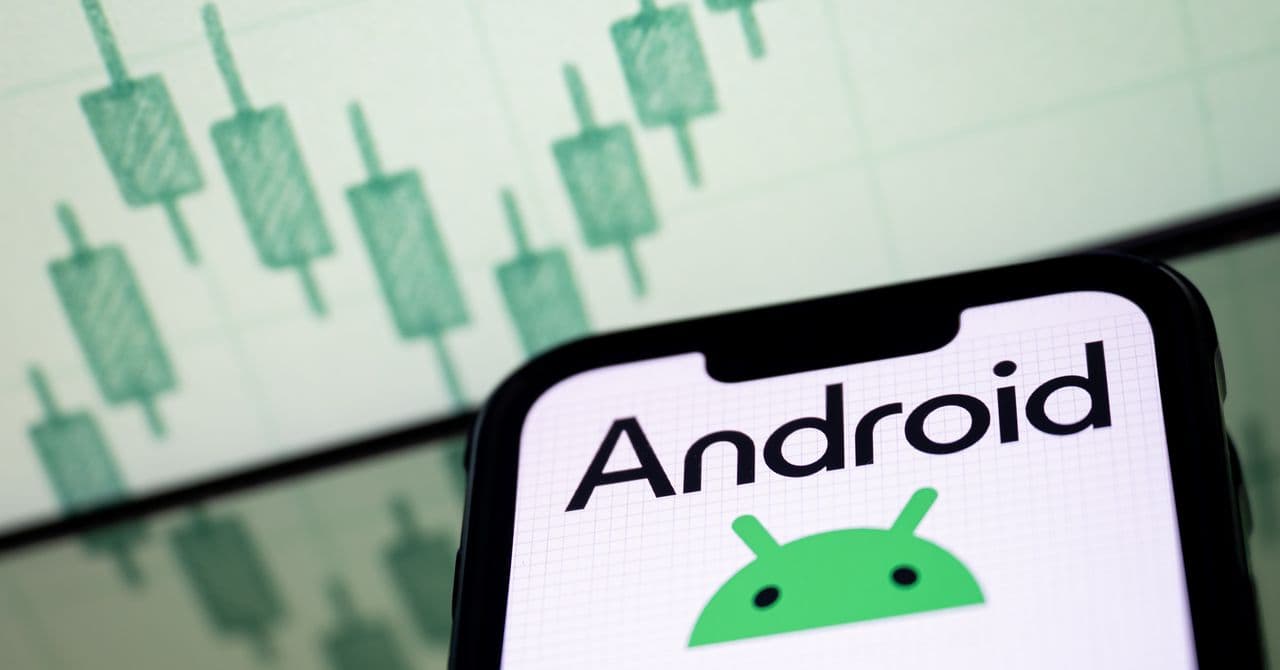
Image: Wired

Technology
Thursday, March 19, 20264 min read

Unlock Android Auto's Hidden Features with Custom Shortcuts

Unlock the full potential of Android Auto with customizable shortcuts for Google Assistant. Learn how to enhance your driving experience today.

Glipzo News Desk|Source: Wired
Share
Glipzo

Key Highlights

  • Customize Android Auto with easy-to-use Assistant shortcuts!
  • Create shortcuts for directions, music, and more with one tap.
  • Elevate safety by minimizing distractions while driving.
  • Stay updated as Google transitions to the advanced Gemini platform.

In this article

  • Discovering Android Auto’s Customization Potential For many drivers, connecting their **Android phone** to their car's dashboard through **Android Auto** is a routine part of their daily commute. However, beyond just getting from point A to point B, there lies a treasure trove of **customization options** that can enhance your driving experience. One particularly powerful feature is the ability to add **Google Assistant shortcuts** directly to your dashboard. This simple tweak can significantly streamline how you interact with your vehicle while on the road.
  • What Are Google Assistant Shortcuts? Google Assistant shortcuts allow you to execute voice commands with a single button press on your car's display. Whether you need to get directions home, play your favorite **Spotify** playlist, or check your messages, you can customize your Android Auto experience to suit your needs.
  • How to Set Up Your Custom Shortcuts Setting up these shortcuts is relatively easy and can make your driving experience more efficient. Here’s how you can customize your Android Auto dashboard: - **Access Settings:** Depending on your phone model, head to Settings > Connected devices > Connection preferences > Android Auto. - **Customize Launcher:** Once in the Android Auto settings, look for the **Customize Launcher** option. Here, you can select which applications appear on your dashboard. Keep in mind that only compatible apps—mainly mapping and media applications—will be available. - **Add Shortcuts:** Tap on **Add a shortcut to the Launcher** and choose **An Assistant action.** This is where you can create your custom shortcut. Simply type in the command you’d typically give via voice, assign a name, and hit **Create shortcut**.
  • Testing and Modifying Your Shortcuts If you’re currently connected to Android Auto, you can test the functionality of your new shortcut right away. If you’re not in your vehicle, you can still create shortcuts and check them later. - **Rearranging Shortcuts:** Your created shortcuts will appear on the Customize Launcher screen. You can change their order by dragging them around, allowing you to prioritize the commands you use the most. - **Editing and Deleting Shortcuts:** To modify a shortcut, tap on it and make your changes. If you need to remove a shortcut, simply tap the red cross next to it. Deleting shortcuts does not disable voice commands; you can still use them as usual.
  • Why It Matters: Enhancing Safety and Convenience These custom shortcuts can significantly enhance your driving experience by minimizing distractions. Instead of fumbling with your phone or speaking commands aloud, you can easily access essential functions with a single touch. This is particularly useful for commands that require quick access, such as: - Navigating to the nearest gas station - Checking the weather forecast - Sending a quick text message
  • Future Implications with Gemini Transition As Google progresses with its transition to **Gemini**, it’s expected that these shortcuts will evolve. The Gemini platform promises to enhance the voice-controlled experience even further, potentially allowing for more complex commands and integrations with other smart devices in your home. As these features roll out, users can expect even greater convenience while driving.
  • Conclusion: Make the Most of Your Android Auto Experience In conclusion, taking the time to customize your Android Auto dashboard through Assistant shortcuts can lead to a more streamlined and safer driving experience. Whether you rely on these shortcuts for navigation, media, or smart home controls, it’s clear that this feature is a game-changer for Android users. As the transition to Gemini unfolds, staying updated on new functionalities will be key to maximizing your driving experience. Keep an eye on future updates to ensure you're making the most of what Android Auto has to offer.

Discovering Android Auto’s Customization Potential For many drivers, connecting their **Android phone** to their car's dashboard through **Android Auto** is a routine part of their daily commute. However, beyond just getting from point A to point B, there lies a treasure trove of **customization options** that can enhance your driving experience. One particularly powerful feature is the ability to add **Google Assistant shortcuts** directly to your dashboard. This simple tweak can significantly streamline how you interact with your vehicle while on the road.

What Are Google Assistant Shortcuts? Google Assistant shortcuts allow you to execute voice commands with a single button press on your car's display. Whether you need to get directions home, play your favorite **Spotify** playlist, or check your messages, you can customize your Android Auto experience to suit your needs.

Currently, Google is transitioning its services to the new Gemini platform, which will eventually replace Google Assistant. However, for now, the Assistant shortcut remains a valuable feature in Android Auto, promising to bring the same functionality when the switch to Gemini is complete.

How to Set Up Your Custom Shortcuts Setting up these shortcuts is relatively easy and can make your driving experience more efficient. Here’s how you can customize your Android Auto dashboard: - **Access Settings:** Depending on your phone model, head to Settings > Connected devices > Connection preferences > Android Auto. - **Customize Launcher:** Once in the Android Auto settings, look for the **Customize Launcher** option. Here, you can select which applications appear on your dashboard. Keep in mind that only compatible apps—mainly mapping and media applications—will be available. - **Add Shortcuts:** Tap on **Add a shortcut to the Launcher** and choose **An Assistant action.** This is where you can create your custom shortcut. Simply type in the command you’d typically give via voice, assign a name, and hit **Create shortcut**.

Testing and Modifying Your Shortcuts If you’re currently connected to Android Auto, you can test the functionality of your new shortcut right away. If you’re not in your vehicle, you can still create shortcuts and check them later. - **Rearranging Shortcuts:** Your created shortcuts will appear on the Customize Launcher screen. You can change their order by dragging them around, allowing you to prioritize the commands you use the most. - **Editing and Deleting Shortcuts:** To modify a shortcut, tap on it and make your changes. If you need to remove a shortcut, simply tap the red cross next to it. Deleting shortcuts does not disable voice commands; you can still use them as usual.

Why It Matters: Enhancing Safety and Convenience These custom shortcuts can significantly enhance your driving experience by minimizing distractions. Instead of fumbling with your phone or speaking commands aloud, you can easily access essential functions with a single touch. This is particularly useful for commands that require quick access, such as: - Navigating to the nearest gas station - Checking the weather forecast - Sending a quick text message

By thinking ahead about which commands you frequently use while driving, you can set up shortcuts that improve both safety and convenience on the road.

Future Implications with Gemini Transition As Google progresses with its transition to **Gemini**, it’s expected that these shortcuts will evolve. The Gemini platform promises to enhance the voice-controlled experience even further, potentially allowing for more complex commands and integrations with other smart devices in your home. As these features roll out, users can expect even greater convenience while driving.

Conclusion: Make the Most of Your Android Auto Experience In conclusion, taking the time to customize your Android Auto dashboard through Assistant shortcuts can lead to a more streamlined and safer driving experience. Whether you rely on these shortcuts for navigation, media, or smart home controls, it’s clear that this feature is a game-changer for Android users. As the transition to Gemini unfolds, staying updated on new functionalities will be key to maximizing your driving experience. Keep an eye on future updates to ensure you're making the most of what Android Auto has to offer.

Did you find this article useful? Share it!

Share

Related Articles

How the METR Chart Is Shaping the AI Boom's Future
Technology
Apr 19, 2026

How the METR Chart Is Shaping the AI Boom's Future

Discover how the METR time-horizon chart is reshaping the AI boom and influencing investments, public discourse, and technology development.

Indian Express
Shocking Humanoid Robots Outrun Humans in Beijing Marathon
Technology
Apr 19, 2026

Shocking Humanoid Robots Outrun Humans in Beijing Marathon

Humanoid robots outrun human athletes in Beijing's half-marathon, showcasing China's advanced robotics and AI capabilities. Discover what’s next for this technology!

Indian Express
Breaking: Anthropic Meets White House Amid AI Controversy
Technology
Apr 18, 2026

Breaking: Anthropic Meets White House Amid AI Controversy

Discover the implications of the White House's meeting with Anthropic amid ongoing legal battles and concerns surrounding the AI tool Claude Mythos.

BBC Technology

Categories

  • World
  • Technology
  • Business
  • Sports

More

  • Entertainment
  • Science
  • Health
  • Politics

Explore

  • Web Stories
  • About Us
  • Contact

Legal

  • Privacy Policy
  • Terms of Service

© 2026 Glipzo. All rights reserved.